Jan 18, 2021

API Testing 'A Beginners View': How to receive notification of POSTMAN Test execution completion in GOOGLE CHAT ROOM

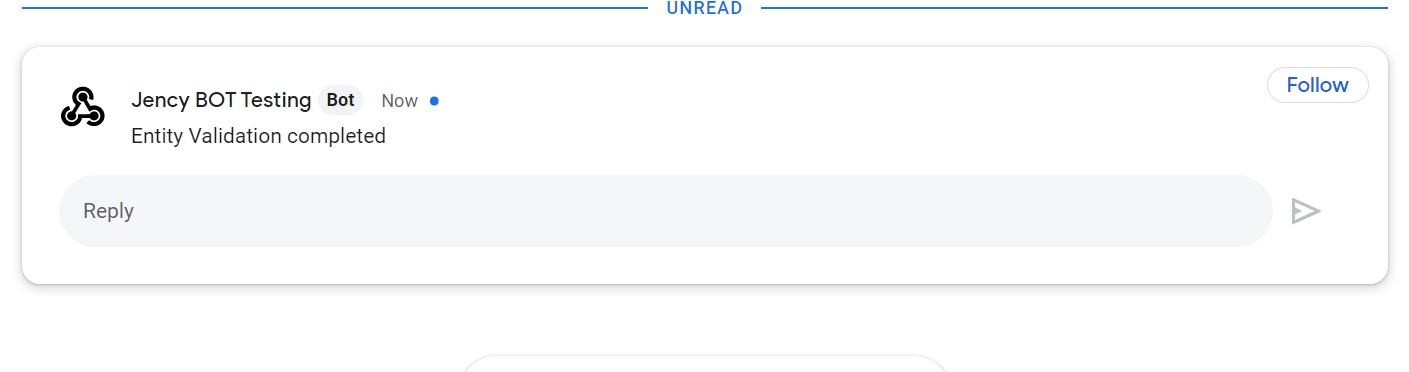
Google chat API is an interesting API that lets you to get notification of the Test Scripts execution completion for every run. Just install GOOGLE CHAT in your machine and follow the below steps and that’s it

Steps to it:

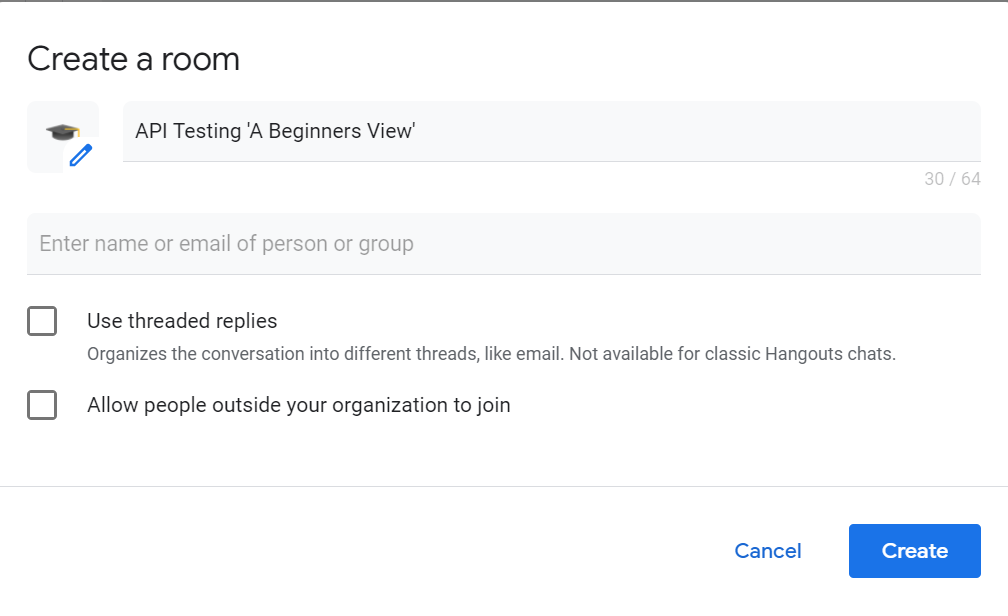
  1. Create a room in Google chat (Addin the member's list).

  1. Room is setup:

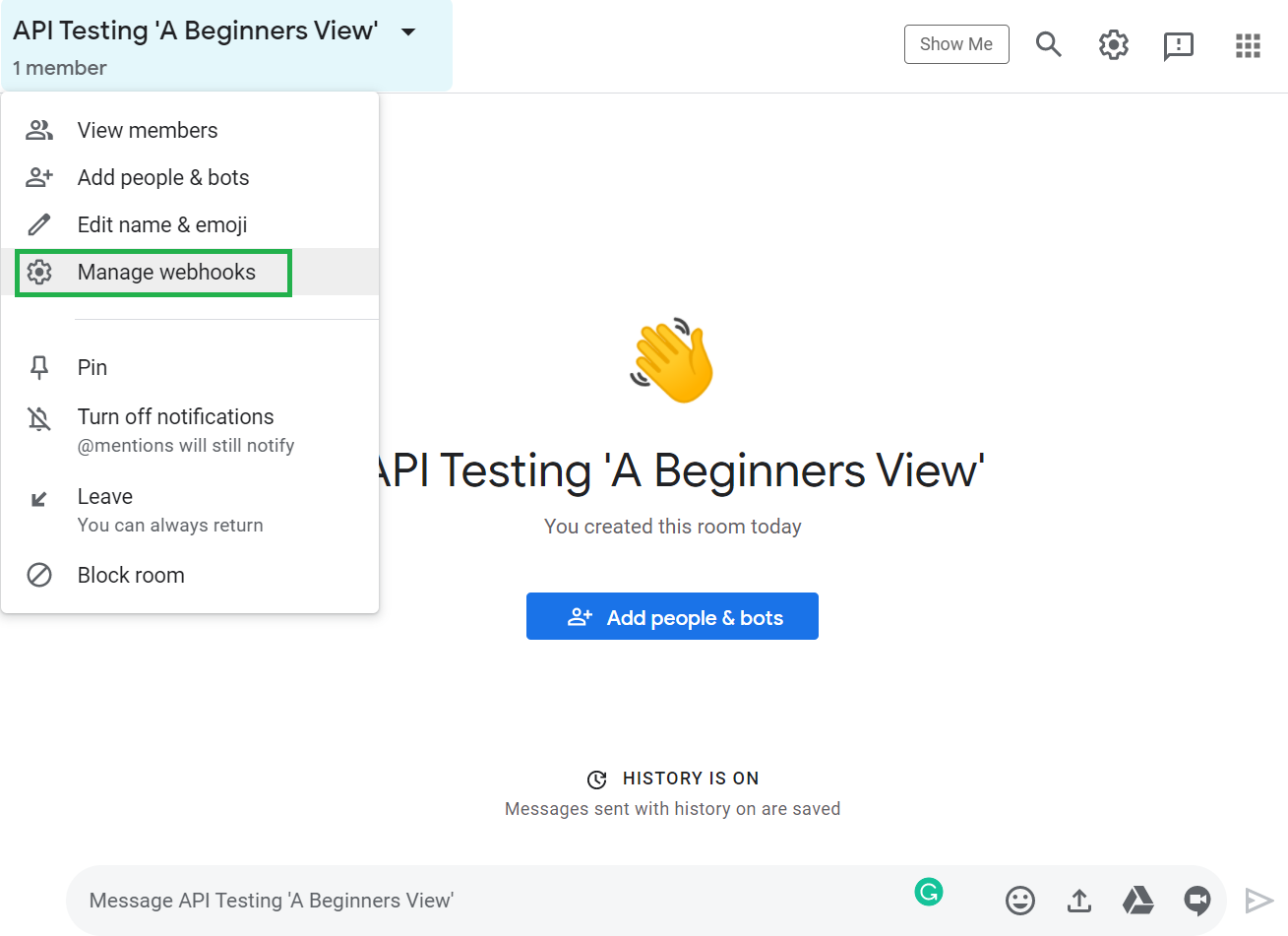
  1. Select “Manage webhooks” as displayed below:

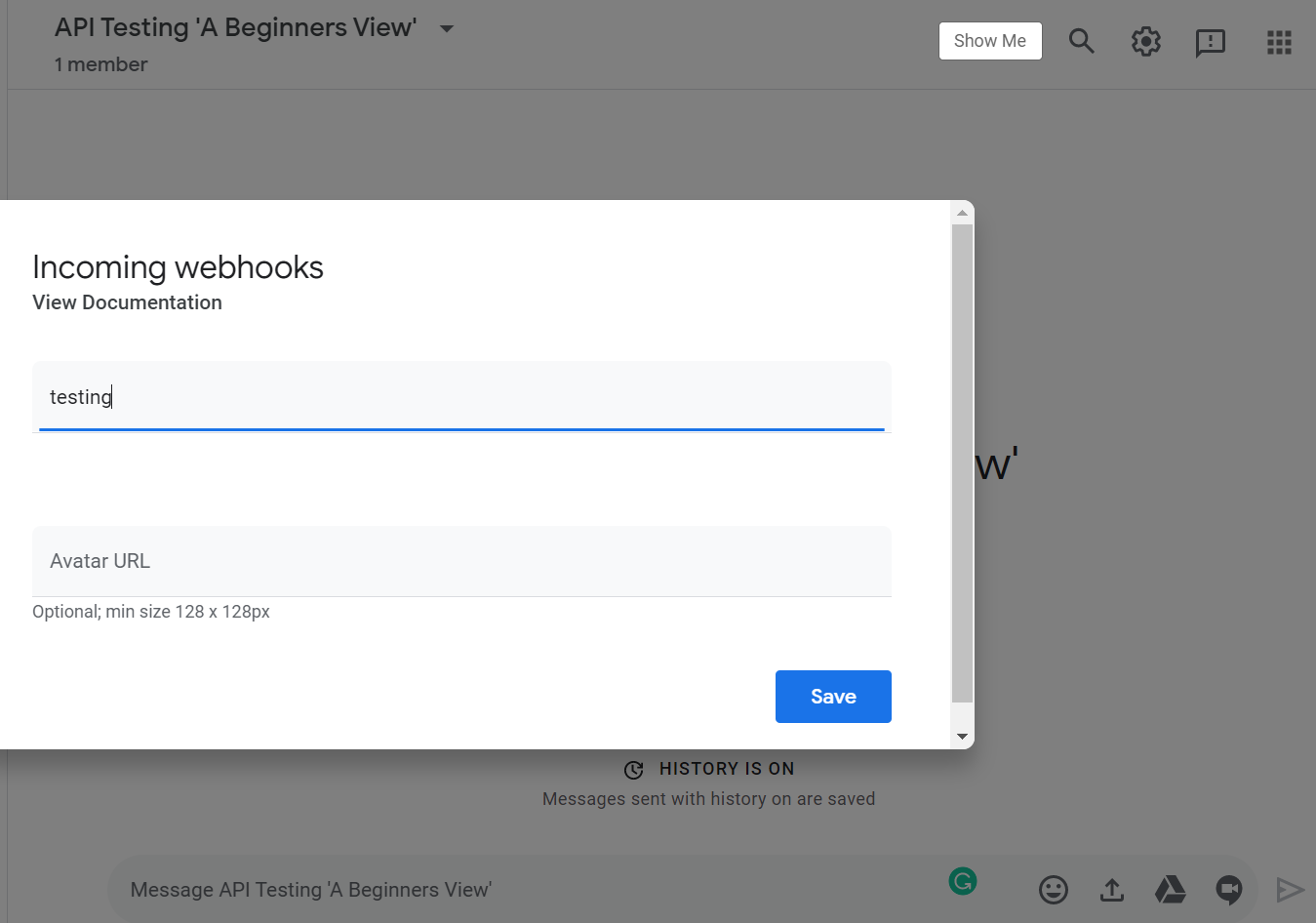
  1. Type any name as per your need and click save:

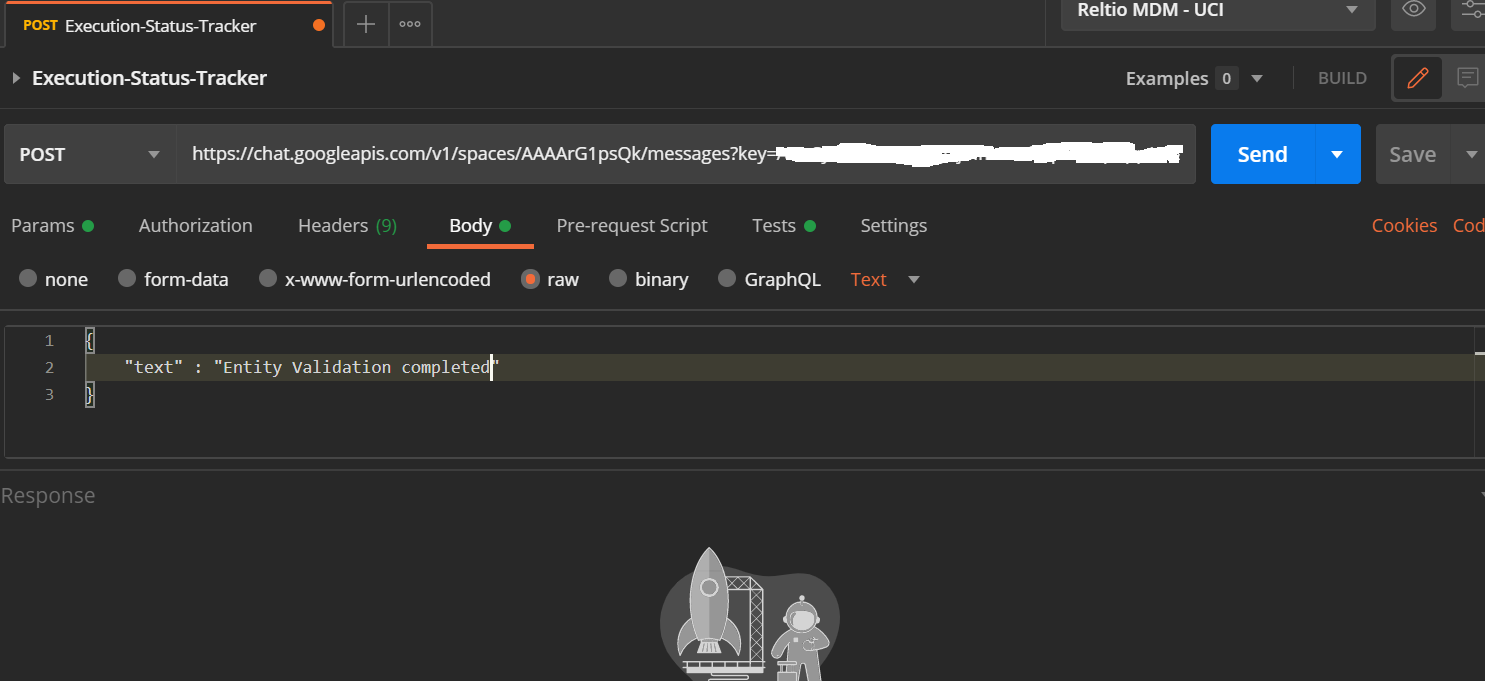
  1. Copy the link to the Clipboard. Open your collection/folders, just add this as a new POST request to the existing ones.

  1. Click on  “Send”:

In this BOT you can add some Test Scripts based on the previous requests execution status to showcase the Test Report.


Sample is below:

var resp = JSON.parse(responseBody);

console.log(resp);

  //Checking the Response Status Code

    pm.test("Response is Successful with Status Code 200", function () 

    {

    pm.response.to.have.status(200);

    console.log("Response is Successful with Status Code 200");

    });

// this counter is from previous step (in your script need to define it)

to check the completion of run

 const counter_check = pm.environment.get("counter");

 if(counter_check == 10) 

 {

     pm.test("Execution Passed" , function () 

        {

        console.log("Execution Passed");

        });

 }

 else 

    {

        pm.test("Execution Failed" , function () 

        {

        pm.expect.fail('Execution failed, please check test results of previous steps');

        });

    }


Happy Learning 😇

Hope this was useful 😇

Jan 4, 2021

Basic Collection for Beginner’s to kick start with POSTMAN - API Testing ‘A Beginners View’

Hello Friends!!!

Here is a simple collection for Beginners like me to kick start with POSTMAN :slight_smile:

Collection URL:

https://documenter.getpostman.com/view/12559118/Tz5p6xux

This collection contains:

Happy Learning!!! 😇

Dec 31, 2020

2020 WRAP UP!!!

2020 started with the devastating global pandemic, which continues to bring the world to a standstill. This year has been unprecedented for a number of reasons, with the COVID-19 crisis looming large. The good news is that we’ve almost made it to the end of 2020! Between the global pandemic, stock market volatility, lockdowns, and economic downturn by HIS GRACE we all managed to keep it going.

Professional pathway this year has been cool, where got to learn new technology and put my legs into the 'API Testing' world, away from the usual road of my Testing journey. Grateful to my company Billennium who gave me this opportunity to play around in 'API Testing' and to POSTMAN and its Community for being a mentor to date.

All this motivated me to write my own BLOG on 'API Testing' with some add-ons although being a Begineer 😇 Here is the link: https://softwaretestingcafebyjency.blogspot.com/ do check it out 😇

Hoping and Praying 2021 will be a safe and growing year for all of us!


Have a great year ahead!!!
Prayerful New Year!!!
Welcome 2021💥


Dec 3, 2020

API Testing 'A Beginners View': Environment and Variables In POSTMAN

In this post let’s try to have a better understanding of the Environment and Variables in POSTMAN


Let’s start with Variables: A variable is a bucket that holds values that can be changed. Suppose you are developing a mobile application. There are some values that will be used throughout the application or some values might be unique to a functionality. Hardcoding of values everywhere in the design is not a good practice in such situations variables can be used. Define a variable as per your need i.e. locally or globally and use its referenced name wherever needed. If you are required to update the value of a variable, just update the value where you have declared. Everywhere updated values will be used.


The same concept applies to Postman. We have many usages of variables in Postman. Let's check out a few of them:

  1. In our day-to-day work life, we might need to test systems in different environments like QA, Dev, Stage, etc which would have a different set of domains. Here variables make our job easier. We can store the domain name as per environment in a variable and can call that variable here.
  2. We can use variables at several places to make it parameterized such as Query- parameters, headers, authorization, request body.
  3. Variables can be used to chain requests in the collection. Extracting data from response, storing, and using it for another request as input are possible by using variables.
  4. Variables can also be used in Pre-request and Tests Scripts. 

Next, Let’s Understand Environment: Environment in POSTMAN is a set of variables that can be assigned a value and used during your work. The environment is tied to the current operating environment: each operating environment has its own POSTMAN environment. To visualize this, I have created an “API Testing 'A Beginners View'” environment with some variables.


There are two columns for the variable's value. The only difference is that if you share your environment with your team, then the value from the first column will be shared.


Let's check out some usage of Environments:

  1. We can create, share, duplicate, export, and delete an environment. 
  2. You can download it as JSON.
  3. Variables defined in an Environment are Local variables. It means you cannot use variables of an environment in another environment. To solve this we have another type of variable called Global variables. Global variables do not belong to specific environments. It is available in all scopes. You can not select multiple environments at the same time. In that case, Global variables will be helpful.

Nov 4, 2020

API Testing 'A Beginners View': JavaScript - Array.prototype.find() and Array.prototype.findIndex()

Array.prototype.find()

The find() method returns the value of the first value of the array to be tested which passes the condition specified. It checks all the values in the array and whichever value satisfies the condition first would be picked and displayed in the output. If the value is not found it returns undefined.


Let's check out some examples to understand it better;


Example1:  Using Arrow Function

Response Body:

{
"args": {},
"data": {
"FirstName": [
{
"value": "{{RandomFirstName}}"
}
],
"Specialty": [
{
"name": "NEUROLOGY",
"experience": "2"
},
{
"name": "Dermatology",
"experience": "2"
},
{
"name": "Ortho",
"experience": "2"
}
]
},
"files": {},
"form": {},
"headers": {
"x-forwarded-proto": "https",
"x-forwarded-port": "443",
"host": "postman-echo.com",
"x-amzn-trace-id": "Root=1-5fd86d42-7d196eb86048629c2b3ea2ca",
"content-length": "288",
"content-type": "application/json",
"user-agent": "PostmanRuntime/7.26.8",
"accept": "*/*",
"cache-control": "no-cache",
"postman-token": "065034d3-4e05-4d1b-872d-382f2579524d",
"accept-encoding": "gzip, deflate, br",
"cookie": "sails.sid=s%3A6n5cRYOmPZd0CgxhkfCCHO6rFlTzSFfw.9ZTgkbZcBTzwWSiBLXKE%2BktjLAb6IdSuIMFNxLxnK9Y"
},
"json": {
"FirstName": [
{
"value": "{{RandomFirstName}}"
}
],
"Specialty": [
{
"name": "NEUROLOGY",
"experience": "2"
},
{
"name": "Dermatology",
"experience": "2"
},
{
"name": "Ortho",
"experience": "2"
}
]
},
"url": "https://postman-echo.com/post"
}


Test Script:

//Using function how to find an object in array by 'find' method
var resp = JSON.parse(responseBody);
function find_result1(value) { 
  return value.name === 'Dermatology';
}
console.log(array_value.find(find_result1));

Console Output:


Example 2: Using function how to find an object in array by 'find' method

Test Script:

var resp = JSON.parse(responseBody);
console.log(resp);
const array_value = resp.data.Specialty;
console.log(array_value);
//Using arrow function how to find an object in array by 'find' method
const result = array_value.find( ({ name }) => name === 'NEUROLOGY' );
console.log(result);

Console Output:


The explanation for the above examples:

The above example is based on an array that has three values to it as below:

I have used the ‘find’ method in two different ways to identify the object that satisfies the conditions:

  • name === 'NEUROLOGY'
  • name === 'Dermatology'

After execution, the output returns the value which satisfied the condition.


Array.prototype.findIndex()

In continuation of the above feature, if we need to know the index of the element that we found, this can be done by the findIndex() method. It returns the index of the first element in the array that satisfies the condition we provide. If no element passes the test condition, it returns -1.


Example: In continuation to the above snippet when we add the below code, index will be returned

//How to find the index of the result

//Using function how to find an object in array by 'find' method
function find_result1(value) { 
  return value.name === 'Dermatology';
}
console.log(array_value.find(find_result1));
console.log(array_value.findIndex(find_result1)); //this is using function

Console Output:


Hope this was useful 😇
Happy Learning 😇